Geotab File Manager Add-In
The File Manager add-in brings your fleet documents into MyGeotab, helping you keep records organised, find information quickly and stay on top of renewals.
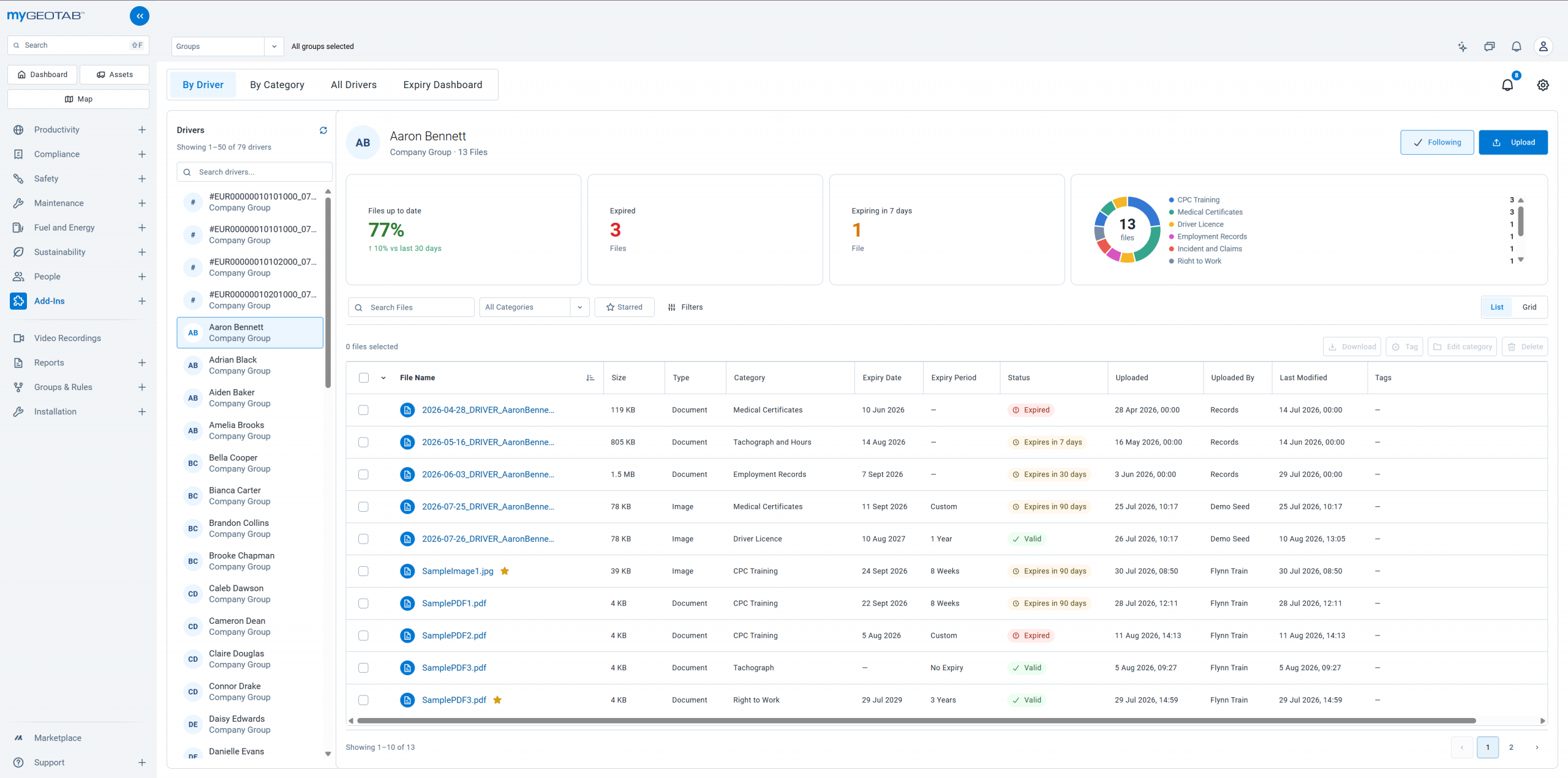
Click the screenshot to view it full size.
FEATURES
- Driver and asset document management: keep licences, certificates, inspection records and other files linked to the relevant driver or asset.
- Flexible organisation: arrange documents into categories and subcategories, add tags and star frequently used files.
- Search and filtering: find documents across your fleet, or browse by driver, asset or category.
- Built-in previews: view PDFs, images and Word documents directly in the add-in.
- Expiry tracking: identify expired documents and upcoming renewals.
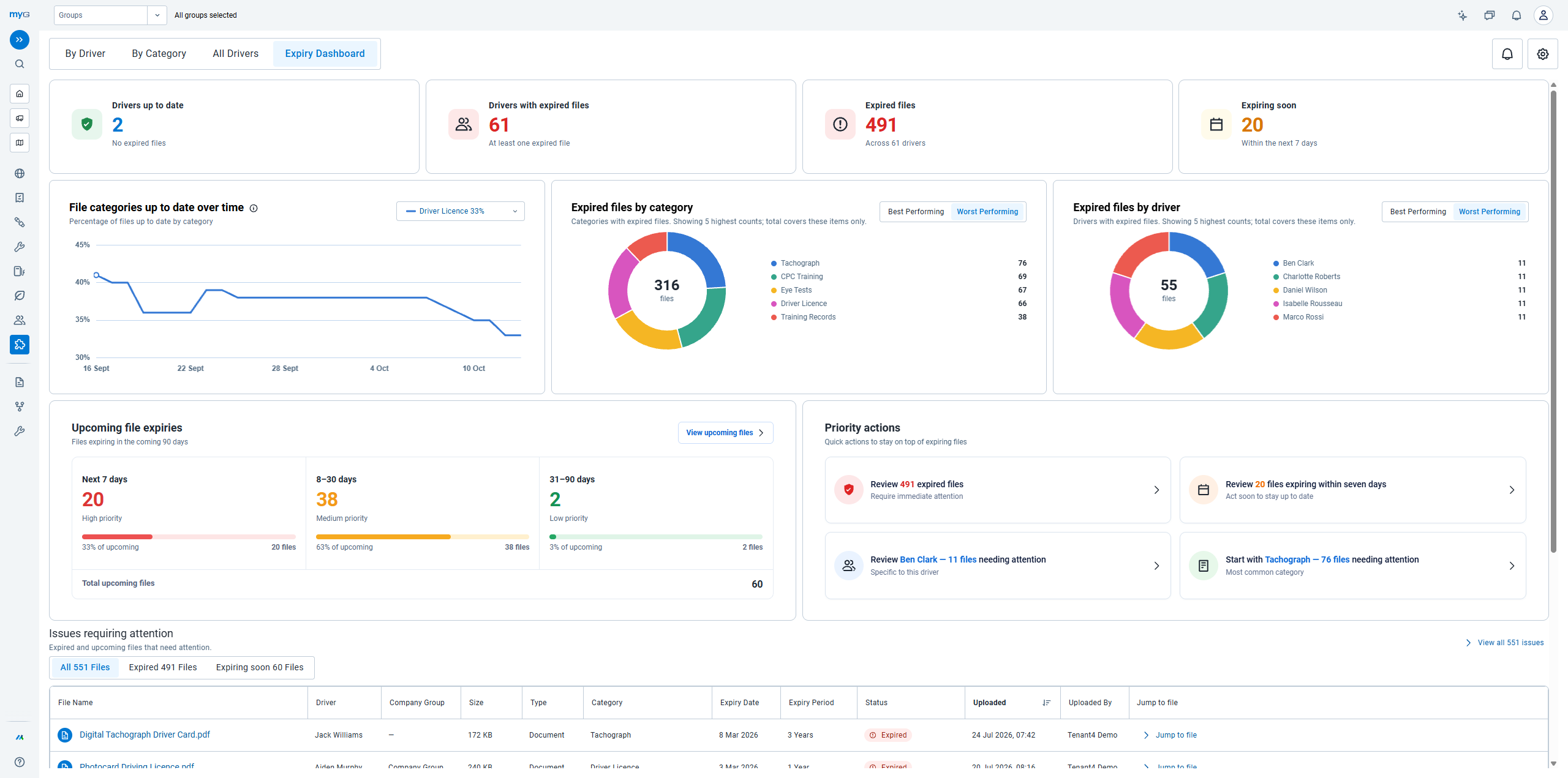
- Fleet dashboards: see document expiry status at a glance and identify drivers or assets needing attention.
- Custom forms and templates: capture consistent information, including signatures, odometer readings, locations and vehicle damage.
- AI assistance: pre-fill fields from uploaded documents and create editable form templates from sample documents, when configured.
- Document updates and history: replace outdated files and review previous versions and recorded activity.
- Team collaboration: discuss files through comments and mentions, and share direct links with colleagues who have access.
- Notifications: follow drivers, assets or categories to stay informed about changes.
- Bulk actions: download, tag, categorise or delete multiple files together.
- Access controls: manage who can view, upload, download, edit, share or delete documents, using Geotab security clearances and category and file permissions.
- Deleted-file recovery: restore documents accidentally deleted during the retention period.
- Geotab Drive access: let drivers search and view permitted documents through the My Files page in the Geotab Drive app.
- Configurable automation: trigger emails, Drive messages or generated PDF documents from uploads, changes, approaching expiry dates or schedules, when enabled.
- Choose your cloud storage region: control where your data and files are stored, with a choice of cloud regions worldwide.
- Familiar MyGeotab experience: built with Geotab’s Zenith design system, the add-in looks and feels like MyGeotab, making it easy for your team to get started.
BENEFITS
- Find documents quickly: Link files to drivers and assets. Organise them with categories and tags, then search and preview without leaving the add-in.
- Stay on top of renewals: See expired documents and upcoming renewals in the expiry dashboard, so your team knows which records need a follow-up.
- Collect files from drivers: Drivers can send photos and documents through My Files in Geotab Drive. Use forms and templates for consistent information.
- Control access and changes: Manage document permissions, review previous versions and recover deleted files during the retention period.
Find the file against the right record
Driver Files
Open a driver to find their licences, CPC certificates and training records, with each document’s expiry status in view.
Asset Files
Open a vehicle or asset to find its MOT, insurance and inspection records in one place.
Expiry Dashboard
See which documents have expired and which renewals are coming up, then follow up with the driver.
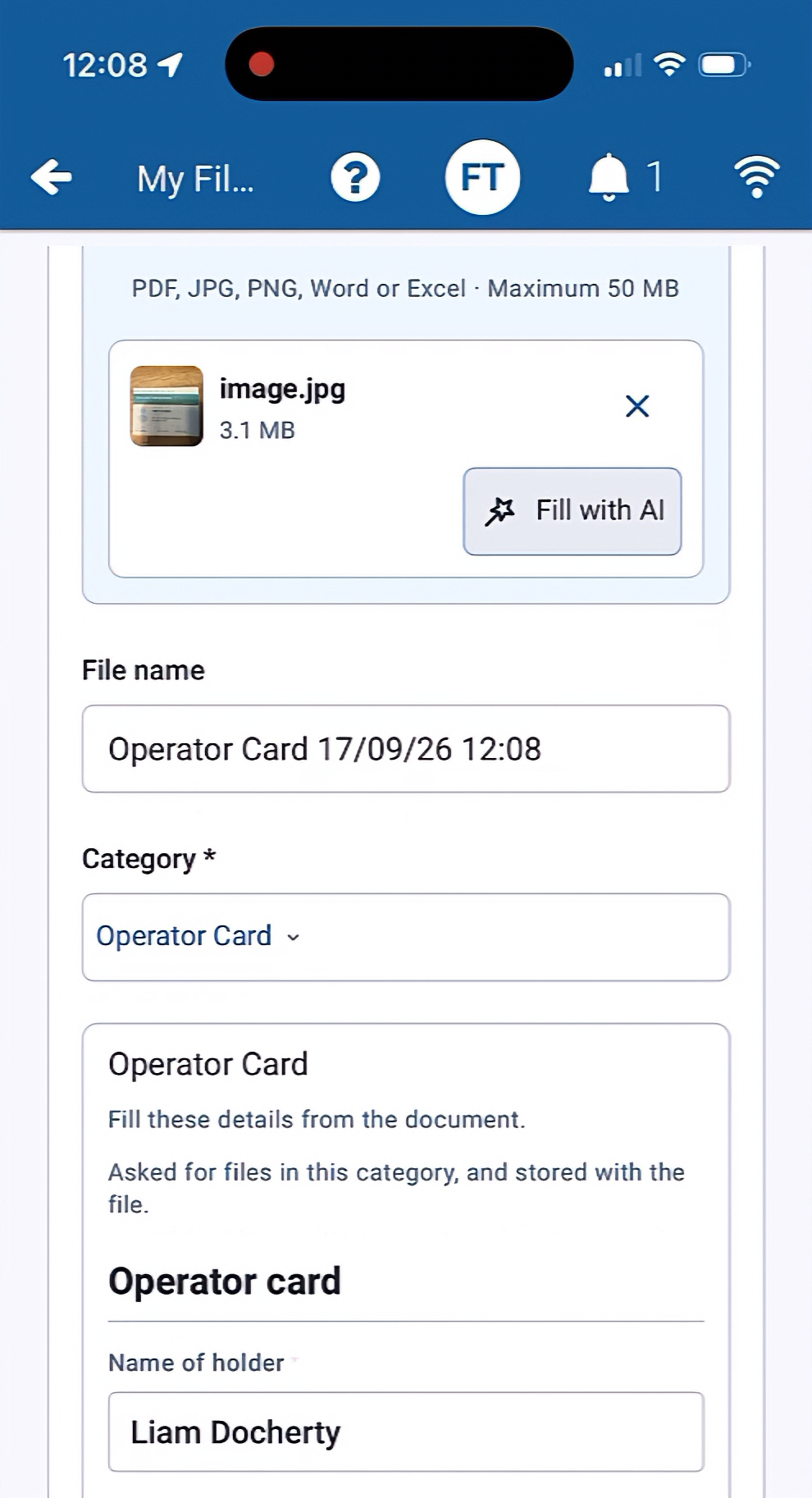
How drivers send documents
Drivers can use their mobile device to upload documents or photos straight to their record using My Files in the Geotab Drive app. AI fills in the details.
How drivers send documents
Drivers can use their mobile device to upload documents or photos straight to their record using My Files in the Geotab Drive app. AI fills in the details.
1. See what’s due
Check expired files and upcoming renewals in File Manager, then follow up with the driver.
2. AI reads the document so drivers don’t have to type
In Geotab Drive, the driver can take a photo or pick a file, then let File Manager’s AI read it and fill in the category, expiry date and other details automatically. The driver checks the result, adds any notes, and uploads.
3. The office checks the record.
Find the upload against the driver in File Manager. When you replace an existing document, the previous version stays in history. Uploading alone does not replace it.